
01
Open your shipment email
Your FleetOptics shipment email includes an Add to Apple Wallet button.
Add your FleetOptics order to Apple Wallet to receive important delivery updates and view the latest status—all with no app required.

Tap the badge in your shipment email to add tracking to Apple Wallet.
Add your order from the FleetOptics shipment email and receive delivery updates through Apple Wallet.
Quickly check your latest delivery status, estimated timing and shipment details directly in Apple Wallet.
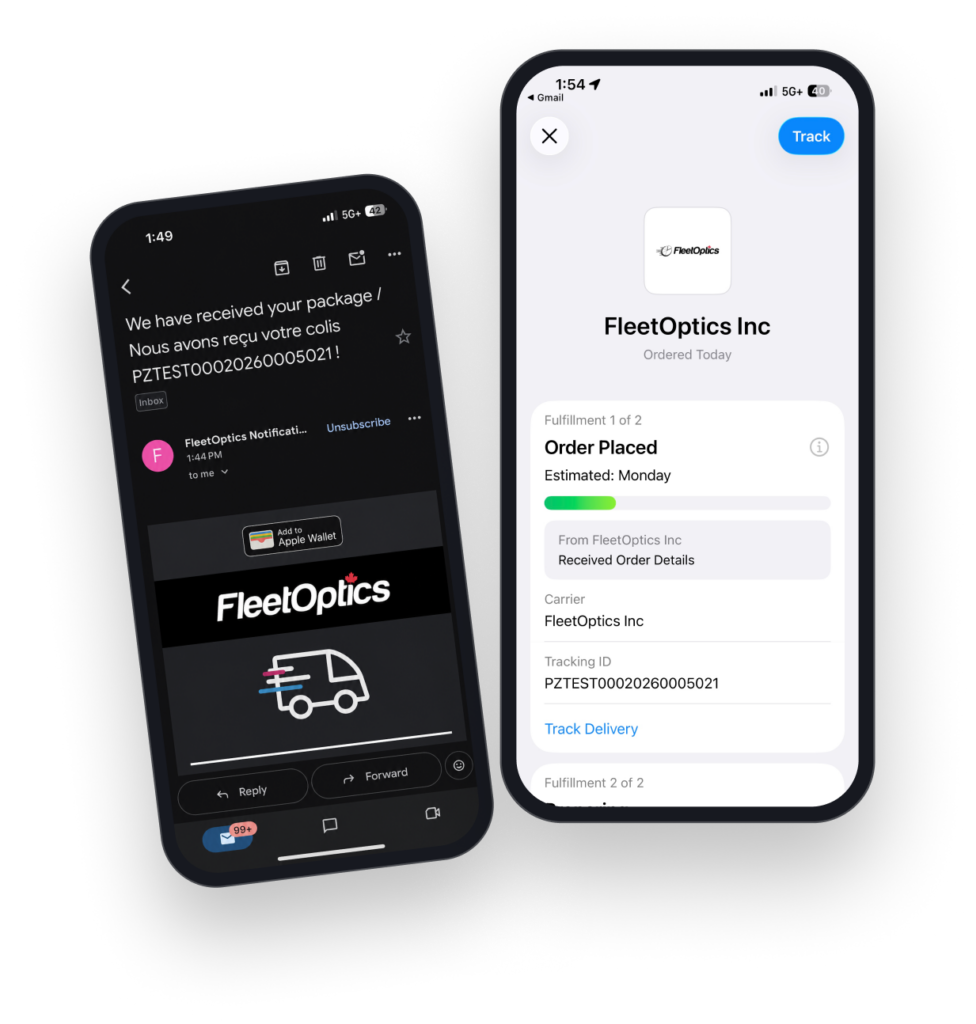
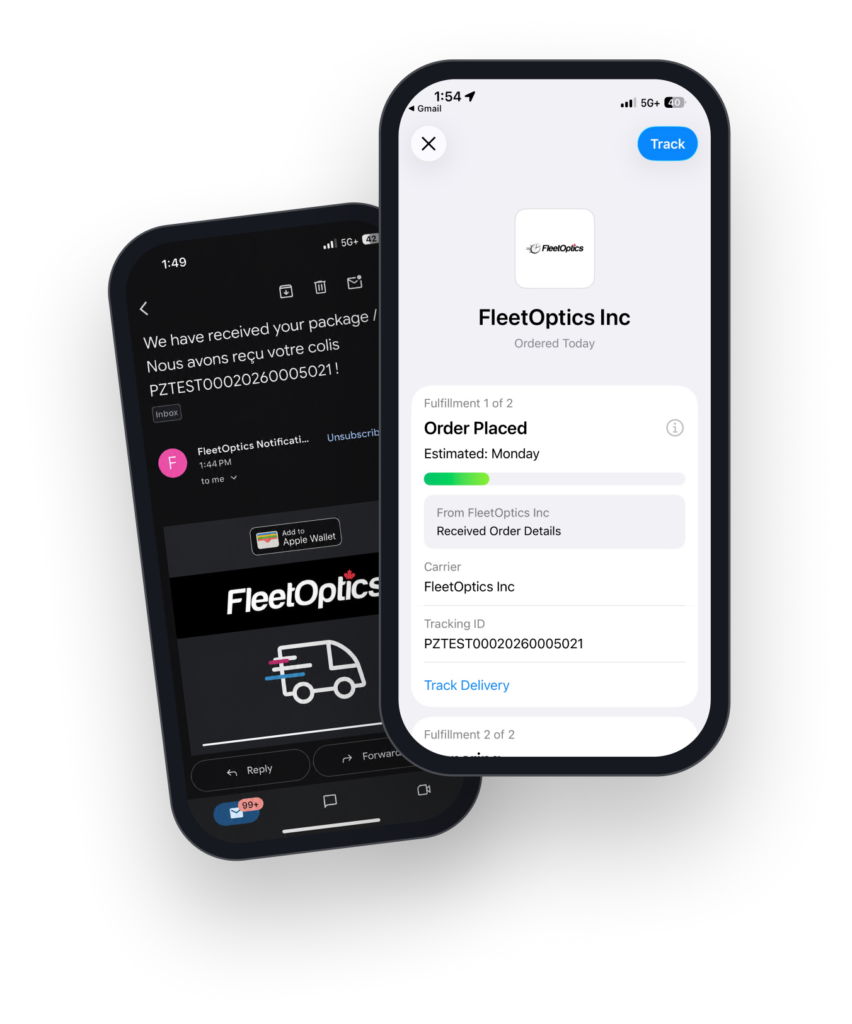
Everything you need to start following FleetOptics deliveries in Apple Wallet.
Open the shipment notification email from FleetOptics, tap “Add to Apple Wallet,” then tap “Track” on the order screen that opens. The pass is saved to Wallet immediately.
No. The tracking experience opens directly in Apple Wallet on your iPhone, with no app required.
Yes, if Wallet notifications are enabled on your iPhone. Delivery milestones can appear on your lock screen, including time-sensitive alerts when an issue needs your attention.
Yes, any time. Swipe on the pass in Wallet and tap remove—this has no effect on your delivery or your order history.
Yes. The Wallet pass is an additional way to follow your delivery—it doesn’t replace your email notifications, so you’ll continue to receive both.
Apple Wallet tracking is specific to iPhone. If you’re on Android, you’ll continue to get the same tracking information by email and through the FleetOptics tracking page.